Tuesday, 23 May 2017

GCDkit for OS X ? Yes, but...

One of the most common complains regarding GCDkit is that it is platform-specific, i.e. Windows only (and it's not too fond of win 10, either...). Well the latest version (GCDkit 4.1) is, at long last, able to operate on Linux and OS X.

Ok, hold your horses -- it is still very clunky and not fully functional. But indeed, it can load and start. The reason I'm bringing this up today is, I just had a colleague visiting, and we managed to install and start GCDkit on his Mac, using normal, publicly released versions. It may, or may not, work for you. Good luck.

Short instructions for users familiar with R:

  • Install R (the current version of GCDkit is known to work under R 3.2.1, we offer no guarantee with any other version).
  • Install the following packages : R2HTML, RODBC and sp
  • Download the zip version of GCDkit and install it as a "local binary package"

Longer instructions

  • Download R for OS X, version 3.2.1, from this page
  • Install it, keep all the default options.
  • Before installing GCDkit, you must install three additional packages. Start R, and then either 

(1) in the console, type the following commandinstall.packages(R2HTML)
A dialog should pop up, showing a list of "mirrors" in different countries (sites from which you can download the package). Select the one closer to you. the ones that are labelled "https" may not work behind a proxy.
Some information should appear in the console. If R ask whether it should "install from sources and compile", say "no".
Repeat the procedure for the other two packages: install.packages(RODBC) and install.packages(sp)

(2) from "packages and data" in the menu bar, select "package installer". There is a tutorial video here. Select "cran-binaries" from the top menu, then "get list". Find the mirror nearer to you (again) and then scroll the list until you reach R2HTML, RODBC and sp. Install all three of them.

  • Now you can install GCDkit. First, go to gcdkit.org and download the zip file of GCDkit 4.1. Install it as a "local package", following the instructions on this page: go to the package installer again, this time select "local binary package", and navigate to the zip file that contains GCDkit. This morning we had issues with the package manager and had to restart R, this happens, don't worry.

And now ? 

 Now GCDkit is installed, together with all the relevant libraries, so it is able to run. However, what is not there is the GUI: no menus or dialogs for you, sorry.

To launch GCDkit: start R, and then from the console type library(GCDkit).  This will load GCDkit, and you should see all the familiar instructions, ending with


Geochemical Data Toolkit (GCDkit) 4.1,
built R 3.2.1; ; 2016-02-05 16:12:23 UTC; windows

Please support our efforts and cite the package 'GCDkit' in publications
using the reference below. Type 'citation("GCDkit")' for BibTex version.

Vojtech Janousek, Colin M. Farrow and Vojtech Erban (2006).
Interpretation of whole-rock geochemical data in igneous geochemistry:
introducing Geochemical Data Toolkit (GCDkit).
Journal of Petrology 47(6): 1255-1259.
doi: 10.1093/petrology/egl013

Ready 2 Go - Enjoy!

GCDkit->

Now you can (and have to) type GCDkit commands from the R console. In the next post I'll give a couple of examples.

Linux ?

Well, probably. None of us is a Linux user but we got it running on an (emulated) Ubuntu (virtual) machine.
If you're using Linux, you probably know what to do, so follow the "short" instructions above.


But I want a platform-independent GUI !

Well, so do I... Stay tuned, maybe one day...

(gWidgets2 + RGtk2)

Monday, 17 April 2017

Legendary post

One of the most frequent topics of user queries I am getting are legends. So let's explain some of the principles here.

As you know, in GCDkit it is possible to assign plotting symbols and/or colours by several mechanisms, and these, in turn, influence the appearance of the resulting legend(s). 

Plotting symbols and colours set from Plot settings menu

The easiest way to alter the plotting symbols and/or colours is to use the Plot settings menu. 
They can be chosen by the following mechanisms:
  1. levels of the chosen label

    • according to all unique values attained by the given textual field, such as locality names or names of igneous suites
    • menus Plot settings|Symbols by label,  Plot settings|Symbols by label  - initial letters and Plot settings|Colours by label
    • functions assignSymbLab(), assignSymbLett() and assignSymbCol()
  2. uniform symbols or colours

    • the symbol or colour will be the same for all samples
    • menus Plot settings|Uniform symbols and Plot settings|Uniform colours
    • functions assign1symb() and assign1col()
  3.  colours by variable

    • plotting colours assigned according to the values of the given variable, the chosen palette and desired approximate number of its shades
    • menu Plot settings|Colours by variable
    • function assignColVar()

  4.  symbols/colours by group

    • according to the levels of the currently defined groups.
      NB that these have to be defined previously either from menu
      Plot settings|Data handling|Set groups by...  (label, numeric variable, diagram, outline or cluster analysis) or by one of the underlying functions: groupsByLabel(), cutMy(), groupsByDiagram(), figGbo() or groupsByCluster()
    • menu Plot settings|Symbols/colours by groups
    • function  assignSymbGroup()

Setting up a legend

In all these cases, the legend is prepared automatically and invisibly by the GCDkit system. If contrasting criteria are chosen for symbols and colours, two legends are built. 

Here comes a bit more technical description - for definition of legends, two internal variables 'leg.col' and 'leg.pch', are used. If they differ from each other, two separate legends are created,  for plotting symbols and colours. If both variables equal zero, the current grouping information is used. Otherwise these variables contain the sequential number(s) of column(s) in the data frame 'labels', whose levels are to be used to build the legend(s).

Lastly, I should point out that the legend is still not correctly built when the colours are assigned by a numeric variable - a shortcoming that is fixed by the new version of GCDkit that is currently at advanced stages of preparation. 

Plotting symbols and colours set directly in the datafile

File structure

Already the data files may contain specifications of plotting symbols and/or colours in columns named "Symboland "Colour" or “Color”, respectively
The plotting symbols can be specified either as single character strings or numeric codes, whose overview can be obtained by invoking the menu item Plot settings|Show available symbols
The colours are coded either as numeric values (1–49) or one of 657 full English (British or US spelling) names. For further information, see Help, the menu Plot settings|Show available colours or type colours() into the Console.

Loading the file

If specifications of both the plotting symbols and colours are absent, and at least one non-numeric variable is present, the user is prompted upon loading a new datafile whether he does want to have the symbols and colours assigned automatically, according to the levels of the selected label. Otherwise default symbols (empty black circles) are used. 

Setting up a legend

After the data are successfully loaded, the logic that is behind the user's choice of plotting symbols and colours predefined in the file needs to be explained to the GCDkit system. This is done from the menu Plot settings using one of the four mechanisms discussed above. Perhaps the most common is a scenario in which the symbols, colours, or both, reflect levels of a single label, for instance the names of individual intrusions.

And, finally.... displaying a legend

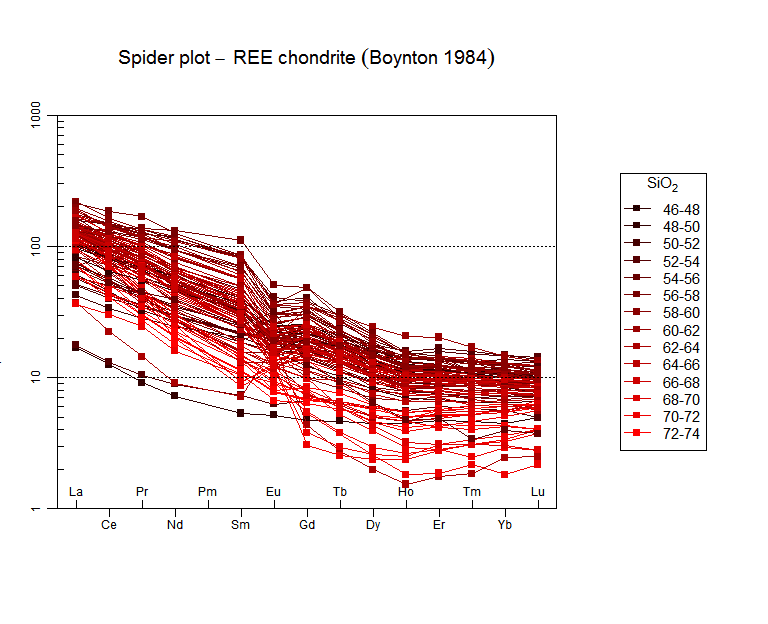
Apart from diagrams that contain legends automatically, such as spiderplots, there are two possibilities how to display legend(s). First shows legend in a standalone window, invoking the menu Plot settings|Display legend attached to the function showLegend().  The second adds legend to an existing Figaro compatible plot, using the  menu Plot editing|Add... legend or the function figLegend(). In the latter case, the user has to click on the position of the top left corner for positioning of the legend box.
 

Friday, 13 January 2017

Diagram templates in GCDkit

Happy new year to all ! For this first post of 2017, let's dig in some techincal details on graphs in GCDkit, for those of you who would like to develop their own templates. Interested? Read on....

One of the beauties of GCDkit is the possibility to access many predefined diagrams of common use. They reside in the "plots/classification" or "plots/geotectonic" menus. The difference between the two types of diagrams is subtle; diagrams from "classification" can be used for to classify samples according to where they fall in the diagram, whereas those from the "geotectonic" group cannot be used in this way. In some cases it is rather obvious (some of the geotectonic diagrams actually include multiple panels, so the classification would be a bit more difficult). In other cases the difference is just a matter of how the function is written internally, and converting a geotectonic diagram to a classification diagram would be easy.

Diagram templates

Let's start by having a look at how diagrams are defined in GCDkit. You may have noticed that, when you load data, GCDkit prints a list of diagrams that can be used – i.e. the program reads diagrams from files on the disk, and checks for each of them whether the required data exists for this dataset (technically, if WR[] has the appropriate column headings). So adding one diagram template is actually a simple matter of writing a template file.

Template files reside (on a windows 7 install) in C:\Program Files\R\R-3.2.1\library\GCDkit\Diagrams\ . If you navigate there (or in the …\library\GCDkit directory in your R installation, if you did put R somewhere else, for some reason), you will notice 4 "spider" something files (which we are not going to consider for now); a classification directory; a geotectonic directory. The "classification" directory has 3 sub-directories for the 3 languages now supported. Each of the 3 language directories contains the same files, with just the names being translated. In fact the master directory is the English one, and the other two are automatically generated from a dictionary file (.dict.txt) during compilation – not something you'll have access to, so for the time being better stick to English.

Let's look at a diagram template in … \library\GCDkit\Diagrams\Classification\English . For instance a simple one, a Shand diagram. The corresponding file, Shand.r, can be opened in a text editor of your choice (notepad is by default on your computer but if you are serious about programming, you should look for one of the myriad of more clever alternatives – notepad++, ultraedit, winedt, tinn-R…). Shand.r is a 28-lines file, that we will now examine.

The first line reads
Shand<-function(){

So we are defining a new function, named Shand(). The function takes no arguments. The curly brace { closes at the very end of the file, line 28, so all of the file is enclosed in the function.

Next are two lines:
x.data<<-WR[,"A/CNK"]
y.data<<-WR[,"A/NK"]
 
Here the code defines two variables (vectors) called x.data and y.data; they are a subset of the matrix WR, specifically x.data gets the content of the column called "A/CNK" and y.data gets "A/NK". Both are calculated by GCDkit from your major elements data when loading a file, so you can trust they'll always be there – otherwise you would have to do the calculation yourself. Note that we use here a "super assignment", <<- , to make sure the variables are accessible even outside of the function (ok, you do not really need to understand that if you are just up to hacking some diagram templates).

Then comes the core of the graph function, the template. The template will be used by GCDkit's internal plotting system called "Figaro", which is a rather complex affair that allows interactions with the graphs. You do not really need to understand the specifics of it; all you need to know is that you have to supply an object called temp (for template, not temporary!) that will be a list containing all the stuff you'd like Figaro to plot on your diagram (in addition to the datapoints): lines, labels, etc.

Here, the template is assembled lines 21 to 25, with the following code:
if(getOption("gcd.plot.text")){
temp<-c(temp1,temp2)}
else{
temp<-temp1
}
Which looks at the value of the (Boolean) option gcd.plot.text, and accordingly will either merge temp1 and temp2, or use only temp1, to create the list temp. temp2, as you may have guessed, contains the text labels as we shall see latter on.

First, we define the lines with
temp1<-list(
clssf=list("NULL",use=2:5,rcname=c("metaluminous","peraluminous","peralkaline","undefined")),
lines1=list("lines",x=c(1,1,0.5,0.5,1),y=c(1,7,7,1,1)),
lines2=list("lines",x=c(1,2,2,1,1),y=c(1,1,7,7,1)),
lines3=list("lines",x=c(1,1,0.5,0.5,1),y=c(1,0,0,1,1)),
lines4=list("lines",x=c(1,2,2,1,1),y=c(1,1,0,0,1)),
lines11=list("abline",h=1,col=plt.col[2]),
lines12=list("abline",v=1,col=plt.col[2]),
lines13=list("lines",x=c(0,7),y=c(0,7),col=plt.col[2],lty="dashed"),
GCDkit=list("NULL",plot.type="binary",plot.position=14,plot.name="A/CNK - A/NK (Shand 1943)")
)
temp1 is a list of "things" to plot on the graph; each item in the list is a list itself. Here we define the following:
  • clssf, which contains the names to use for classification purposes. Here we indicate that the items to use for classification will be number 2 to 5 (number 1 is clssf itself), and the names to be used are, in the same order, "metaluminous"… etc.
  • lines1 to lines4 are, as the first item of the list tell us, "lines". Their coordinates are given as a series of x values, then y values. So the first item, lines1, goes from (1,1) to (1,7) to (0.5,7) to (0.5,7) back to (1,1). Note that since it will be used for classification purpose, we must close it and return to the origin – hence the first and last points are the same. Also note that these lines have neither color nor pattern, so they will be plotted but invisible (you may, however, encounter them if you edit the resulting graphical file in Illustrator or similar, as you will get these surprising invisible polygons – yes, that's why!
  • lines11 and lines12 are "abline", the first one is horizontal at y=1 (h=1), the second one is vertical. Both are plotted in colour #2 (which has been defined somewhere else).
  • lines13 is a dashed line, defined as a "lines" Figaro object with x and y values.
  • GCDkit is a list of type "NULL" (it's not a type known to Figaro), but contains the info GCDkit needs to add it to the menu: the name under which it will appear (plot.name = ) and the position it will assume in the list of graphs (plot.position=14).
Temp2 contains more template info:
temp2<-list(
text1=list("text",x=0.55,y=6,text="Metaluminous",col=plt.col[2],adj=0),
text2=list("text",x=1.05,y=6,text="Peraluminous",col=plt.col[2],adj=0),
text3=list("text",x=0.55,y=0.5,text="Peralkaline",col=plt.col[2],adj=0)
)
As you can see, these are the text labels to draw. All are of type "text", and come with a plotting position, a text, colour, and adj (how the text will be "aligned" around its nominal position).

Both are then merged into temp, as we discussed; and the last thing to do is to call Figaro with
sheet<<-list(demo=list(fun="plot", call=list(xlim=c(0.5,1.5),ylim=c(0,7),main=annotate("A/CNK-A/NK plot (Shand 1943)"),col="green",bg="transparent",fg="black",xlab="A/CNK",ylab="A/NK",main=""),template=temp))
(or in fact, to put all the info in a figaro object, that is actually drawn when calling the function plotDiagram, which is what the GUI does).

The Figaro object is one more list of lists, which you use to pass the graph template (template=temp, at the end) as well as parameters such as the plot limits (xlim, ylim), the title of the graph (main) and of the axes (xlab, ylab), etc.

The function that has just been defined (called Shand(), as you may remember) does nothing visible on its own. But it can be used as an argument to more interesting things such as
plotDiagram(diagram="Shand") # asks lots of questions, and eventually plots the diagram
or
classify(diagram="Shand") # writes the classification of each sample
and these are the functions used in the GUI.

A non-classifying diagram is very similar – except that its template has no clssf object; and this allows to have open fields (remember how here the classification fields all have to loop back to the (x,y) of the first point…)

Our own new diagram

La/Yb vs. Yb diagram (here from Moyen and Martin 2012

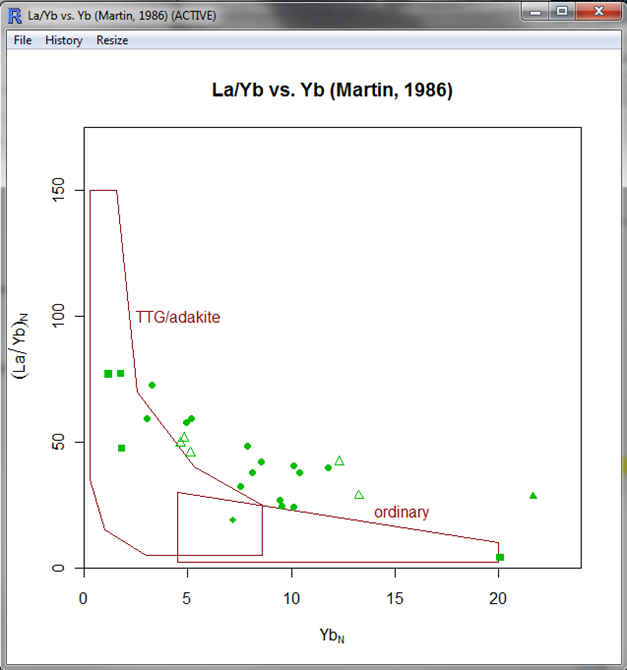
So – we can now use our newly acquired knowledge to define a new diagram template. Let's go for my old friend – Martin's La/Yb vs. Yb diagram for TTGs vs non-TTGs. As you know this diagram has been seriously misused and I suggest you read, for instance, Moyen (2009) and Moyen & Martin (2012) before using it, but let's consider for the time being that you know what you are doing, right ?

As shown here, this diagram has a closed blue "TTG" field to the left, but in other work it is actually left open to the top. Closing it does allow to use this diagram as a classification diagram, so let's keep it like that.

Let's create a new R file. It starts with:
LaYb<-function() # The name of the function. {
x.data<<-WR[,"Yb"]/0.22
y.data<<-(WR[,"La"]/0.33)/(WR[,"Yb"]/0.22)

We are using normalized values here, and not ppm. Also, we need to calculate a ratio (La/Yb)N, that is not available by default in WR, so we do the calculation ourselves.

Now for the template :

temp1<-list(
clssf=list("NULL",use=2:3,rcname=c("TTG/adakite","ordinary")),
only two classification items – if we are somewhere else, "classify" will return the value "unclassified".

lines1=list("lines",x=c(0.28,1.55,2.55,5.3,8.6,8.6,3,1,0.28,0.28),y=c(150,150,70,40,25,5,5,15,35,150),col=plt.col[2]),
lines2=list("lines",x=c(4.5,4.5,20,20,4.5),y=c(2,30,10,2,2),col=plt.col[2]),
The two polygons (TTG for the first one, ordinary calc-alkaline for the second one). The most time consuming part is actually extracting coordinated from the diagram. Here I did it by reading the cursor coordinates in Illustrator… Also, we need not forget to define the colour (colour number 2 here, the common GCDkit brown by default) otherwise the polygons will be invisible.

GCDkit=list("NULL",plot.type="binary",plot.position=100,plot.name="La/Yb vs. Yb (Martin, 1986)")
Position in the list of available GCD graphs. I put it at 100 to be (reasonably) sure it does not interfere with anything else. If I define more diagrams, I'll make them 101, 102, etc.

By the way don't forget to close the parenthesis here (see the final file).

temp2<-list(
text1=list("text",x=2.5,y=100,text="TTG/adakite",col=plt.col[2],adj=0),
text2=list("text",x=14,y=22,text="ordinary",col=plt.col[2],adj=0)
)
The text annotations. A bit of trial and error is required to get good-looking (x,y) coordinates.

if(getOption("gcd.plot.text")){
temp<-c(temp1,temp2)}
else{
temp<-temp1
}
This stays the same as in Sand's example before, I like the idea of a global option defining whether to annotate the diagram or not (plus, I think the un-annotated versions are used in plates).
 
sheet<<-list(
                       demo=list(
                                fun="plot",
                                call=list(
                                          xlim=c(0,24),
                                          ylim=c(0,175),
                                          main=annotate("La/Yb vs. Yb (Martin, 1986)"),
                                          col="green",
                                          bg="transparent",
                                          fg="black",
                                          xlab=annotate("Yb[N]"),
                                          ylab=annotate(("(La/Yb)[N]")),
                                          main=""
                                          ),
                                template=temp
                                )
                       )
And the actual Figaro call (here reformatted because I was getting lost in all the parentheses, now you can see what's going on !). Note the use of annotate and square brackets to get subscripts.

Again, a closing curly brace is required here to close the function.

Using it !

Now, you can test your diagram. The easiest is to "manually" load the function, maybe by "sourcing" its code (from file/source R code in the GUI, or by using source("path\\to\\file\\LaYb.r") from the command line) or even by copy/paste to the console. Of course your diagram will not show in the menus (it has not been loaded yet).

But you can still get it (and, presumably, debug it !) with
plotDiagram(diagram="LaYb")
and the classification
classify(diagram="LaYb",silent=TRUE)
(we need silent=TRUE otherwise GCDkit tries to look into the list of known diagrams to retrieve its name – which, of course, fails miserably since the diagram has not been properly loaded yet).

The "classification" menu after adding the diagram in the right directory

When you're happy with your diagram, it's time to drop it in the … \Diagrams\Classification\English folder, and load some data to see what happens (until you load data, nothing will happen, as GCDkit only searches for diagrams when loading data !).


The diagram in GCDkit. Yes, some rocks are not adakites. Even if they have high La/Yb.

Enjoy your new diagram !


The whole code in a single R file: click here.

Monday, 7 November 2016

Catania Workshop

We held a workshop in Catania, sicily, from the 26th to the 30th of September of this year. It was convened, and beautifully organized, by P. Fiannacca and R. Cirrincione at Università degli Studi di Catania. With 20+ participants, including a sizeable group from Brazil, we think the workshop was quite a success (better ask the participants, though !).

Mt Etna, viewed from the hotel where we stayed (Jeff's balcony, to be specific)...
For the first time, we introduced during the workshop the set of modelling routines that we've been promising for years. Although there is no GUI to them now, they work nicely in command line. The next step is to actually release them... We also chanced upon a fantastic R package called gWidgets2, that may well take care of most of our GUI requirments (and, in the process, provide a way forwards for a modelling GUI).
The organizers of the workshop: Patrizia Fiannacca, Jeff, Vojta, Rosolino Cirrincione.

The real highlight of the week, however, was clearly not the code but the Wednesday trip to Mount Etna. Despite a somewhat cloudy weather, we enjoyed a great trip to the Valle del Bove, under the wise guidance of C. Ferlito.
Descending into the Valle del Bove


Listening to Carmelo !